















 0 comments





Key Takeaways :
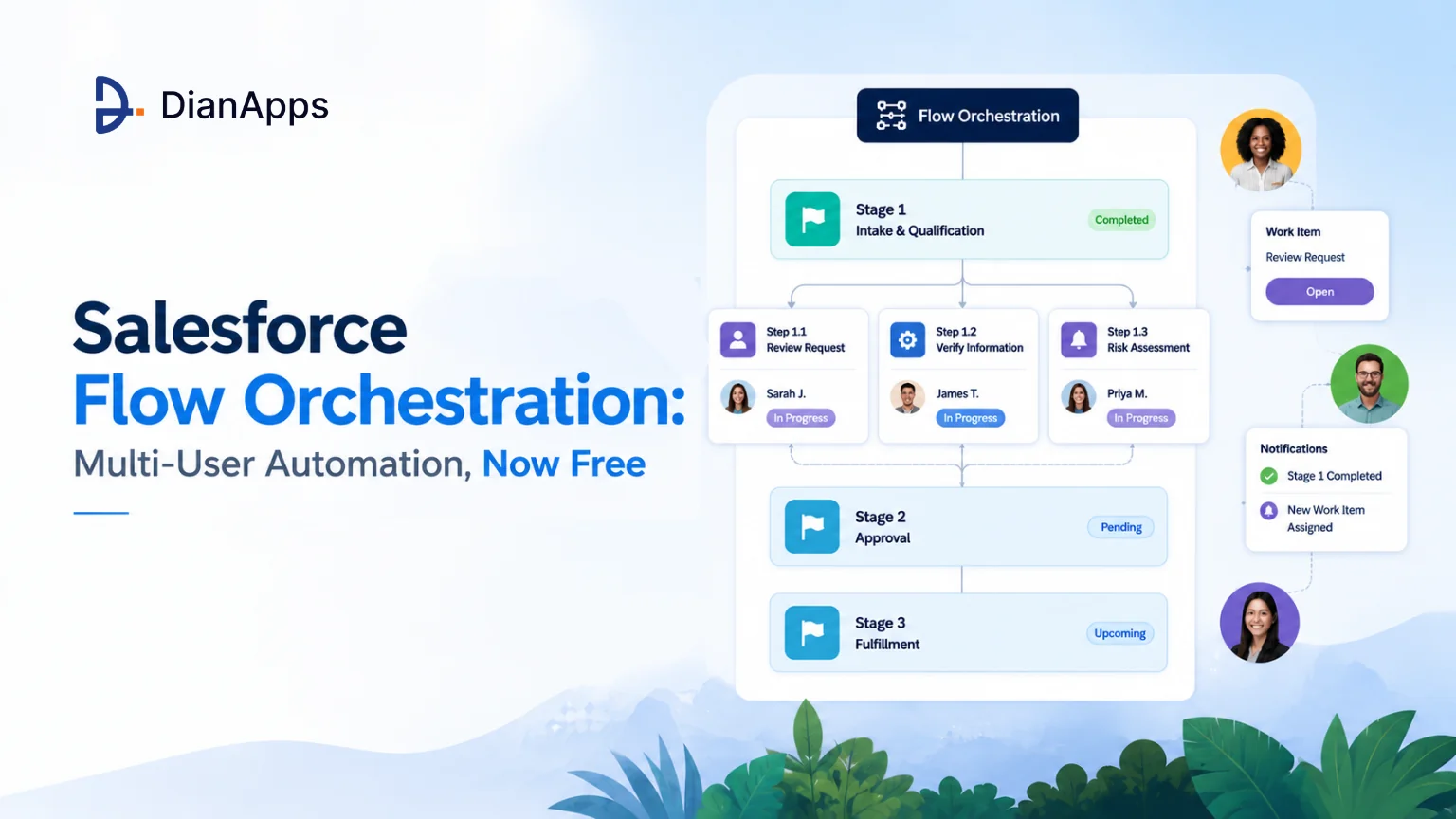
- Flow Orchestration is built for processes that span multiple people and points in time, using stages, steps, work items, and parallel execution to coordinate the entire process.
- It became a standard Flow type in February 2026, removing the previous paid add-on and 600-run annual cap for supported editions.
- Use Orchestration when separate Flows and checkbox fields are being used to track process state, especially when work needs human handoffs or parallel execution.
- Flow Orchestration remains declarative, but complex steps may still benefit from Apex when the automation exceeds Flow’s capabilities.
Quick Answer: Flow Orchestration coordinates multiple flows into stages and steps, assigns work to people, and tracks the whole process end to end. Steps are interactive (a person completes a work item) or background (a flow runs unattended). It’s now included in Enterprise, Performance, Unlimited, Einstein 1, and Developer editions with no usage cap. Use it when a process crosses more than one person and more than one moment in time. For simpler automation, start with Salesforce Flow; when a step requires logic beyond Flow’s capabilities, Flow vs Apex becomes the relevant architectural decision.
If you’ve ever managed a multi-step business process by stringing together record-triggered flows, screen flows, an approval process, and a handful of “In Progress” checkboxes – that’s what Flow Orchestration replaces.
And as of August 2026, it’s free. Previously a paid add-on capped at 600 runs per org per year, it became a standard Flow type in the Spring ’26 release. If you evaluated it before and stopped at the price, that reason has gone.
Most guides still describing the licensing model were written before that change.
What Changed in 2026
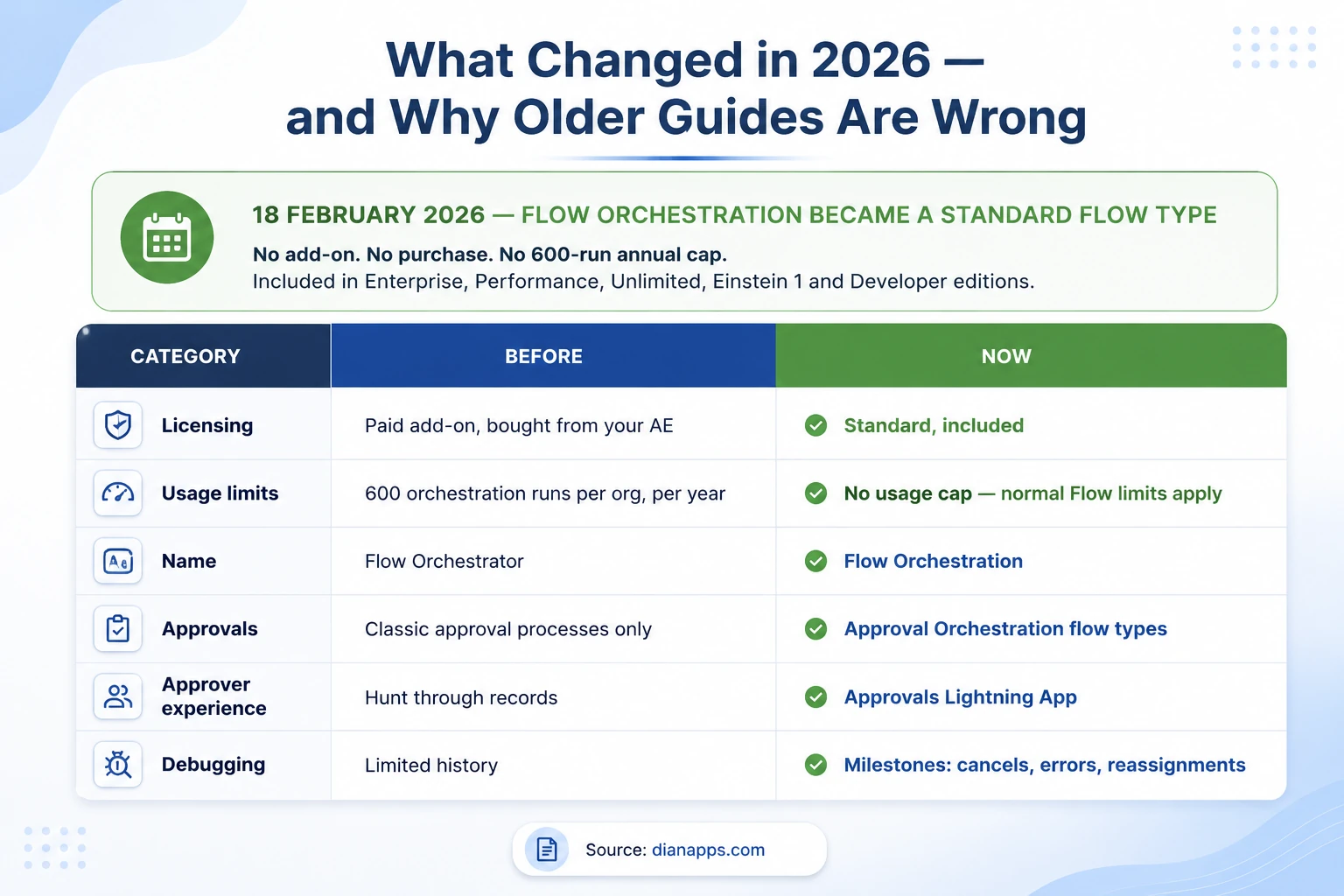
Table showing Flow Orchestration changes in 2026: licensing, usage limits, naming, approvals, approver experience, and debugging
The licensing change is the headline, and it genuinely changes the calculus. The old model was a paid add-on plus 600 free orchestration runs per org per year – a cap widely criticised as too restrictive for anything expected to grow. Both are gone. Normal edition-based Flow limits now apply.
Four capability changes worth knowing:
- Approval Orchestration Flow Types: Autolaunched Approval Orchestration (triggered by another process or a custom button) and Record-Triggered Approval Orchestration (fires when a record is created or updated). This is what makes Orchestration a genuine successor to classic approval processes rather than a parallel tool.
- The Approvals Lightning App: A dedicated approver interface showing where any approval sits, without digging through records.
- Better Debugging: Failed steps now generate notifications at both orchestration and flow level, and orchestration history includes milestones for cancellations, discontinued stages, errors, and work item reassignments.
- Agentforce Actions In Flow Builder (Summer ’26): Meaning orchestrated processes can call AI agents for decision points. See what Agentforce is.
- Also Renamed: “Flow Orchestrator” is now “Flow Orchestration.” Older content uses the old name.
How an Orchestration Is Structured
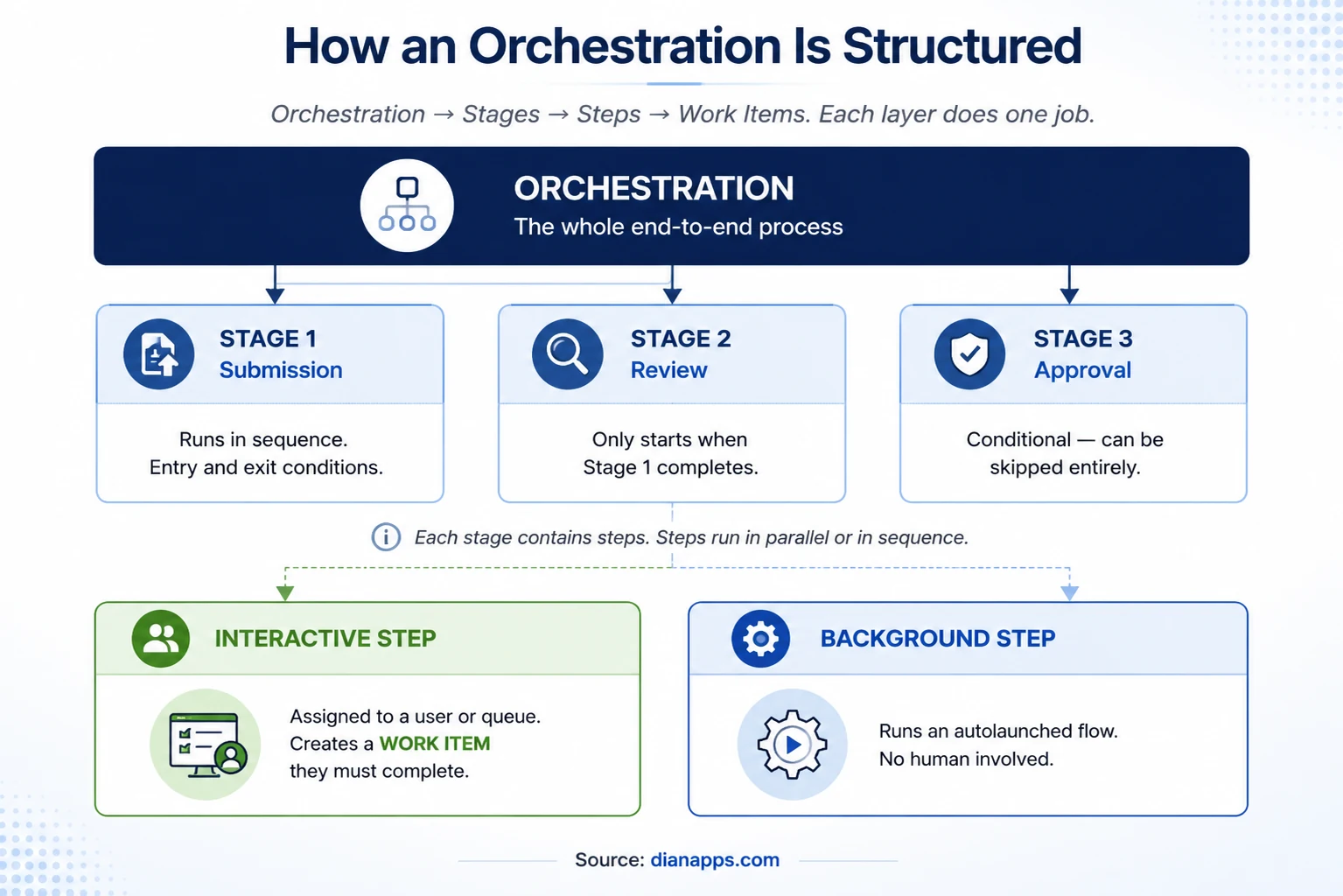
Diagram showing orchestration containing stages, stages containing interactive and background steps, and interactive steps creating work items
- Orchestration: The whole end-to-end process. One orchestration per business process.
- Stages: Sequential phases. Stage 2 only begins when Stage 1 completes. Each stage has entry and exit conditions, so stages can be skipped when they don’t apply.
- Steps: The units of work inside a stage. Steps within a stage can run in parallel, which is the capability that daisy-chained flows can’t replicate. Three people can work simultaneously, and the stage completes when all three finish.
- Work items: What an interactive step creates. A record assigned to a user or queue, appearing in their list, that they complete via a screen flow.
Interactive vs background steps
Interactive steps assign work to a person or queue and wait. The orchestration pauses indefinitely – hours, days, weeks – until someone completes the work item. This is the core capability: an orchestration can span time in a way a single Flow cannot.
Background steps run an autolaunched flow with no human involvement. Data updates, integration notifications, calculations. Use them for anything that doesn’t need a decision.
A Common Design: A background step prepares data, an interactive step gets a human decision, another background step acts on it.
What Orchestration Adds Over a Single Flow
Both use the same underlying automation engine; they solve different problems.
- A Flow Automates A Task: It responds to a trigger, updates data, presents a screen, and finishes – usually within one transaction.
- An Orchestration Coordinates A Process: It sequences multiple flows, decides who does what, waits for people, and tracks the whole thing.
Concretely, orchestration adds:
- Pause For Humans, Indefinitely: A Flow can’t wait three days for someone to respond and then continue.
- Parallel Work: Steps within a stage run concurrently.
- Assignment To Users And Queues: With reassignment when someone’s unavailable.
- A Single View Of Process State: Where is this request right now and who has it?
- Conditional Stages: That skip when they don’t apply.
- Reuse: The same screen flow serves multiple orchestrations.
The Signal You Need It: You’re using checkbox fields to track which stage a process is in, and multiple flows read those checkboxes to decide what to do next. That’s an orchestration built badly.
Related: Salesforce Flow guide
Which Tool Should You Use?
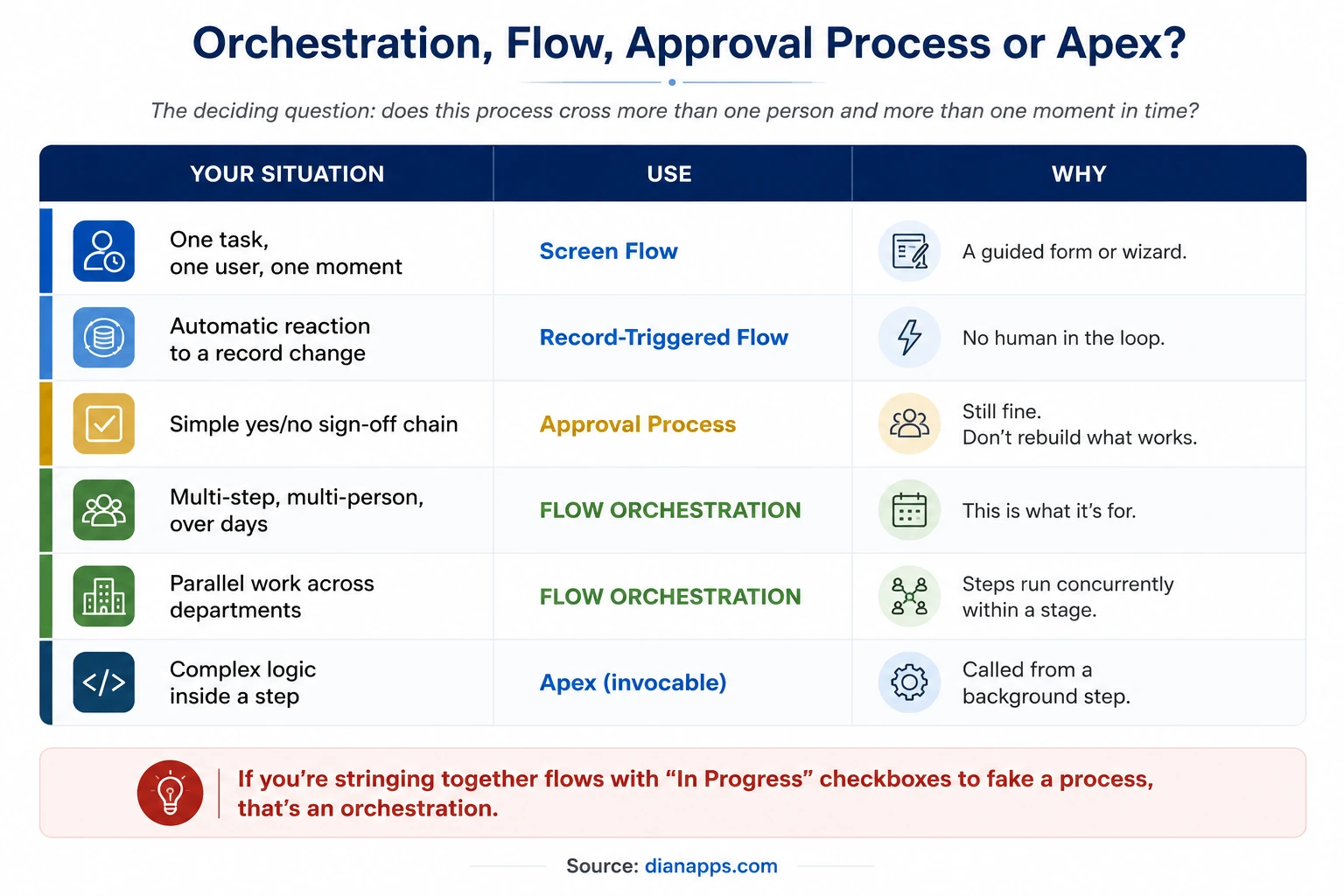
Decision table comparing screen flows, record-triggered flows, approval processes, Flow Orchestration, and Apex by situation
The deciding question: Does this process cross more than one person and more than one moment in time?
If no, a Flow is simpler and easier to maintain. Orchestration adds structure you don’t need for single-task automation.
When the process also involves custom logic, integrations, or processing that Flow cannot handle cleanly, the Flow vs Apex decision becomes important.
Regarding approval processes specifically, classic approval processes still work and are supported. Don’t rebuild a functioning two-step approval as an orchestration for its own sake. But if your approval involves parallel reviewers, conditional routing, or work happening between approval steps, Approval Orchestration handles it, and classic approvals don’t.
For more complex implementations, Salesforce Development Services can help assess the existing automation, determine where Orchestration fits, and handle the Apex or integration work that Flow cannot cover.
Related: Flow vs Apex · Salesforce low-code development
A Worked Example
Employee onboarding, which almost every org handles badly with disconnected automations.
- Stage 1: Setup (Runs On Offer Acceptance): Background step: create the employee record, generate an ID, set the start date – Background step: notify the hiring manager
- Stage 2: Provisioning (Parallel Steps, All Three Run At Once): Interactive step → IT queue: create accounts, order hardware – Interactive step → Facilities queue: assign desk, issue building pass – Interactive step → HR: upload contract, verify right-to-work documents
- Stage 2 completes only when all three finish. Nobody is waiting on anyone else.
- Stage 3: Manager Preparation (Entry Condition: Stage 2 Complete): Interactive step → hiring manager: assign a buddy, prepare a 30-day plan – Background step: schedule week-one training
- Stage 4: Day One (Entry Condition: Start Date Reached): Background step: activate the user, send a welcome sequence – Interactive step → new starter: complete induction screen flow
What This Gives You That Four Separate Flows Don’t: One place to see where every new starter is in the process, parallel work with no artificial sequencing, automatic reassignment when someone’s on leave, and no checkbox fields pretending to be process state.
Monitoring In-Flight Orchestrations
- Orchestration runs in Setup show every active instance, its current stage and step, and who holds each work item.
- Orchestration history logs milestones – cancellations, discontinued stages or steps, errors at any level, and work item reassignments. That last one matters more than it sounds; “who reassigned this and when” is the first question asked when a process stalls.
- Failed step notifications now fire at both orchestration and flow level, which materially shortens debugging.
- Use Flow Trigger Explorer to order record-triggered orchestrations on an object, the same way you’d order record-triggered flows.
Turn Complex Automation Into One Process
Get expert Salesforce support to map, consolidate, and rebuild multi-step automation with a cleaner orchestration strategy.
Practical Advice Before You Build
- Map the Process On Paper First: Orchestrations are harder to restructure than flows because stages and steps have dependencies. An hour of mapping saves a rebuild.
- Build The Screen Flows First: Test them independently, then assemble the orchestration. Debugging a broken screen flow inside an orchestration is considerably harder than debugging it alone.
- Assign To Queues Not Individuals: Assigning to a named person creates a single point of failure the first time they take leave.
- Use Background Steps Generously: Anything not requiring a decision should be automated, not turned into a work item somebody has to click through.
- Set Exit Conditions Deliberately: A stage with no clear exit condition can leave orchestrations stuck indefinitely.
- Watch Governor Limits: Each step runs within its own transaction, which helps – but a background step calling a heavy flow still consumes the normal budget. See governor limits.
Because Orchestration sits within Salesforce’s broader declarative toolkit, understanding Salesforce low-code development helps teams decide which parts of the process should remain configurable and which need deeper customization.
Need Help Building Beyond Flow?
Bring experienced Salesforce developers into your team when orchestration needs Apex, integrations, complex logic or deeper automation architecture.
Where to Go Next
For the flows an Orchestration coordinates, see the Salesforce Flow guide.
For when a step needs code, see Flow vs Apex and the Apex Programming Guide.
For what else is buildable declaratively, see Salesforce Low-Code Development.
For adding AI decision points: What is Agentforce?
For the limits every automation shares, see Governor Limits.
The Complete Salesforce Development Guide is the hub.
When a Process Outgrows Its Automation
The orgs we’re called into rarely lack automation; they have too much of it, assembled over years, with process state tracked in picklists and half a dozen flows reading each other’s checkbox fields.
Orchestration is often the right answer but only after someone has mapped what the process actually is, which is usually the harder half of the job.
We’re a certified Salesforce Consulting Partner, and untangling multi-step process automation is routine work for our team.
Is Your Automation Getting Hard to Manage?
Tell us how your current flows, approvals, and handoffs work, and our Salesforce experts can help you find a cleaner path forward.
 0 comments











Your email address will not be published. Required fields are marked *