















 0 comments






Salesforce Flow is now the primary way to automate business processes in Salesforce without writing Apex. From updating records and routing work to guiding users through multi-step processes, Flow can handle a wide range of automation needs across a Salesforce org.
But knowing the different types of Salesforce Flow is only the starting point. The real challenge is building flows that perform well, handle errors properly, respect security requirements, and continue working as your data volume and automation landscape grow.
In this guide, we’ll cover the four main Salesforce Flow types, when to use before-save vs. after-save flows, how to build record-triggered flows, how fault paths and error handling work, the limits that can affect performance, run-context security, testing, migration from Process Builder and Workflow Rules, and practical best practices.
For more complex automation requirements, Salesforce development services from a reliable partner can also help businesses design, build, integrate, test, and optimize Flow-based solutions as part of a broader Salesforce environment.
TL;DR: Four main types: Screen (a user launches it), Record-Triggered (a record changes), Schedule-Triggered (a clock), Autolaunched (something else calls it). Use before-save for same-record field updates – it’s roughly 10× faster. Put a fault path on every element that touches data. Record-triggered and scheduled flows run in system mode, which ignores the running user’s permissions, and the old 2,000-element limit was removed in API v57, despite what most guides still say.
What Is Salesforce Flow?
Salesforce Flow is the platform’s declarative automation tool where you build business logic visually in Flow Builder rather than writing Apex. It has replaced both Workflow Rules and Process Builder, and it now handles the large majority of automation most orgs need.
For businesses looking to streamline complex processes, Salesforce development services can help design, build, and optimize Flow-based automation while ensuring it works reliably with the rest of the Salesforce ecosystem.
It matters more than it used to for a structural reason: Workflow Rules and Process Builder are retired, so Flow isn’t one option among several anymore. It’s the declarative option, and anything it can’t do goes to Apex.
See Flow vs Apex for where that line sits.
The Four Flow Types
Pick by asking one question: What launches it?
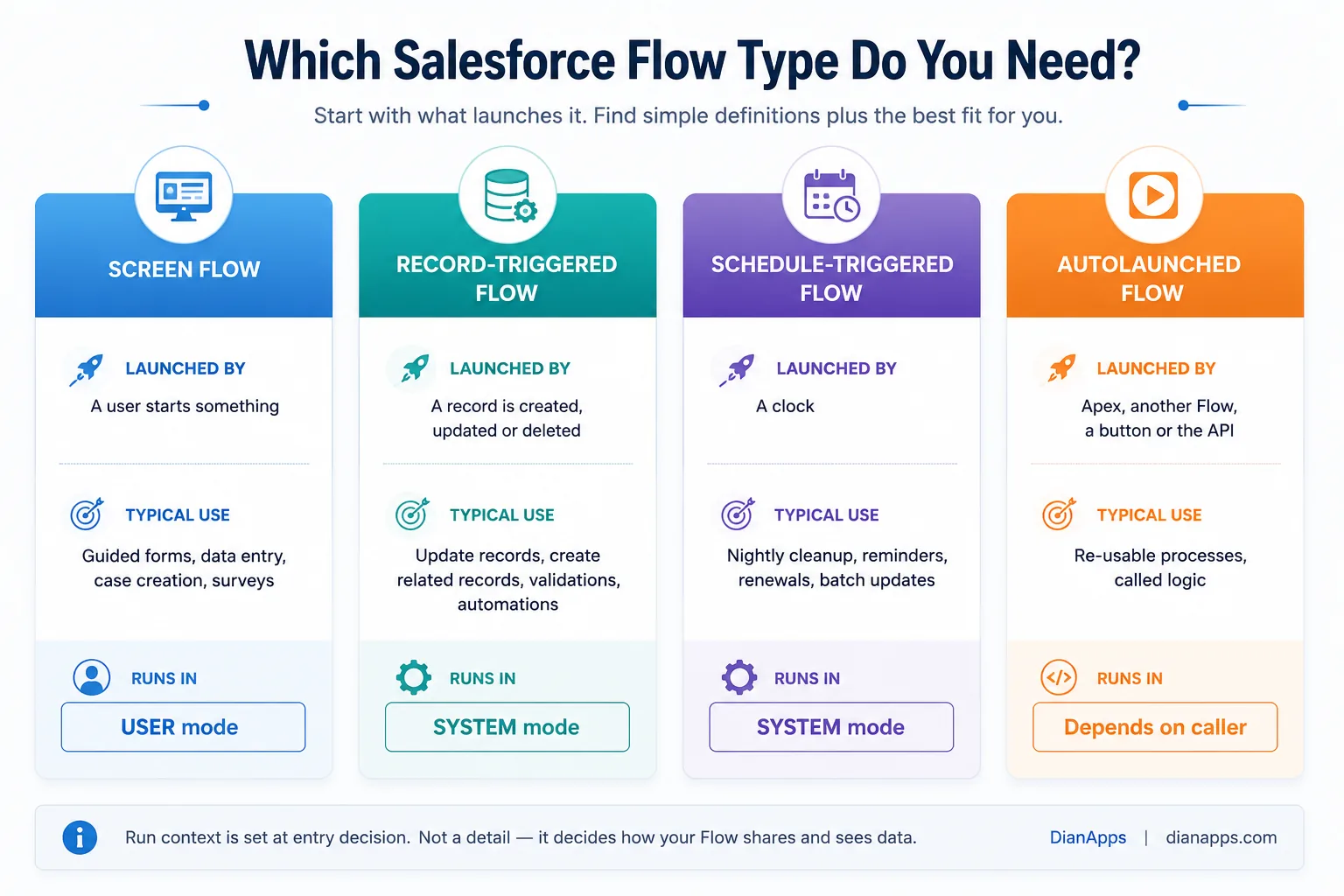
- Screen Flow: A guided, multi-step interface. Data entry wizards, case creation, surveys, guided selling. The only type that takes user input mid-run.
- Record-Triggered Flow: Fires when a record is created, updated, or deleted. The workhorse, and what replaced most Workflow Rules.
- Schedule-Triggered Flow: Runs at a set time against a batch of records. Nightly cleanup, renewal reminders, data hygiene.
- Autolaunched Flow: No trigger of its own; called by Apex, another flow, a button, or the API. This is what you build subflows as.
Beyond the core four, you’ll also see Flow Orchestration for multi-user, multi-step processes with pauses and assignments (see Flow Orchestration), approval processes, which are now built on Orchestration, and template-triggered prompt flows, which inject generative AI into a process via Prompt Builder – the bridge between Flow and Agentforce.
Before-Save or After-Save: The Decision That Drives Performance
Every record-triggered flow asks you this, and getting it wrong is the most common reason a flow is slow.
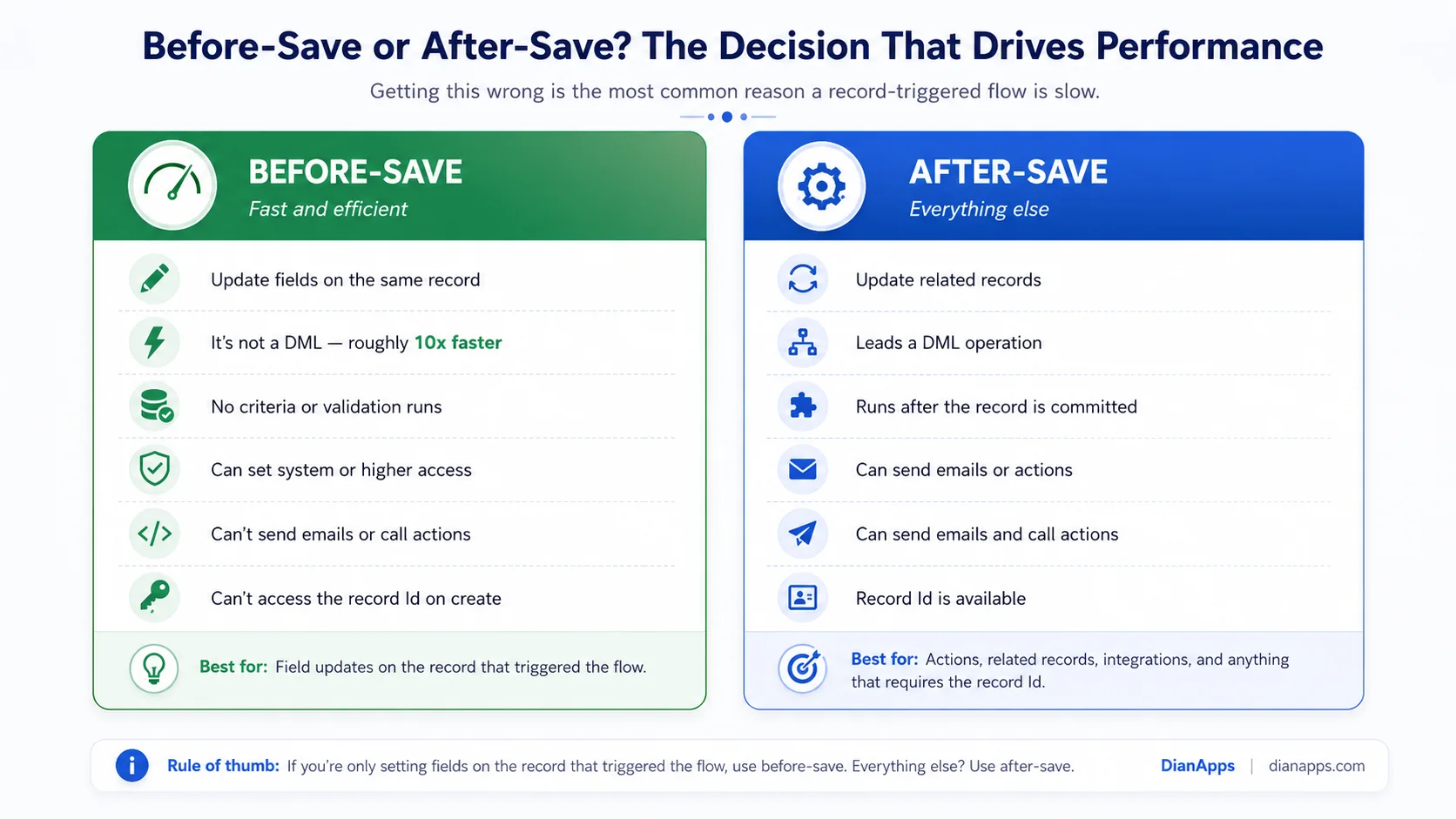
- The Rule: If you’re only setting fields on the record that triggered the flow, use before-save. It writes the values before the record is committed, so there’s no second DML operation – measurably around 10× faster than the after-save equivalent.
Everything else – creating related records, sending emails, calling actions, updating a parent – needs after-save.
One catch worth knowing: On a create, the record ID doesn’t exist yet in a before-save flow, so anything needing the ID has to run after-save.
Building a Record-Triggered Flow
- Setup → Flows → New Flow → Record-Triggered Flow.
- Choose the object and when it runs: Created, Updated, Created or Updated, or Deleted.
- Set Entry Conditions: Do this properly – a flow that runs on every save and then decides it has nothing to do is still consuming resources on every save.
- Choose before-save or after-save using the rule above.
- Add your logic: Decision elements to branch, Get Records to query, Assignment to set variables, Update/Create Records to write
- Add fault paths to every element that touches data
- Debug it with the built-in debugger, then test with realistic volume
- Activate
When flows become more complex or need to support broader business processes, Salesforce development services can help with flow architecture, custom automation, Apex integrations, testing, and ongoing optimization.
Optimise the Entry Conditions, Not the Logic: The Is Changed operator and the “only when a record is updated to meet the condition requirements” option are the two most underused settings in Flow Builder; they stop a flow from re-running every time anything on the record changes.
Error Handling and Fault Paths
This is where most flows are weakest, and it’s the difference between a flow that fails loudly and one that fails silently.
A fault path is a branch that runs when an element fails, and without one, the user gets an unhelpful error screen, and the admin gets an email nobody reads.
Put a fault path on every Get, Create, Update, and Delete element.
What to do inside it:
- Write the error to a custom logging object so you have a history.
- Display a meaningful message on a screen flow, using {!$Flow.FaultMessage} to surface the actual error text.
- Notify an admin or a queue rather than an individual.
- Never leave the fault path empty; an empty fault path silently swallows the failure, which is worse than no handling at all.
The failures you’ll actually see:
| Error | Cause |
|---|---|
| UNABLE_TO_LOCK_ROW | Two automations updating the same record simultaneously - common on bulk loads |
| FIELD_CUSTOM_VALIDATION_EXCEPTION | A validation rule blocked your update |
| INSUFFICIENT_ACCESS_ON_CROSS_REFERENCE_ENTITY | The running user lacks permission on a related record |
| FIELD_INTEGRITY_EXCEPTION | A required lookup is empty or wrong |
| Null reference errors | A Get Records element found nothing, and the flow used the result anyway |
Always null-check after a Get because a Get Records that finds nothing doesn’t fail – it returns null, and the flow carries on until something downstream breaks confusingly.
Flows failing in production and nobody knows why?
Usually it’s missing fault paths and no logging. We’ll audit your automation and put proper error handling behind it.
Run Context: The Security Gotcha
This one catches experienced admins, and it’s covered badly almost everywhere.
Screen Flows run in user mode by default as they respect the running user’s object and field permissions.
Record-triggered and schedule-triggered flows always run in system mode. They ignore the running user’s permissions entirely and can read and write anything.
That’s convenient, and it’s a security exposure. A record-triggered flow can update fields the user could never edit directly, or surface data they have no access to, if you feed the result back to them. When you’re building anything that touches sensitive data, treat run context as a design decision rather than a default.
For screen flows, you can change the behaviour – run in system mode with or without sharing – but do it deliberately and document why.
Related: Salesforce compliance and data security
Flow Limits That Actually Bite
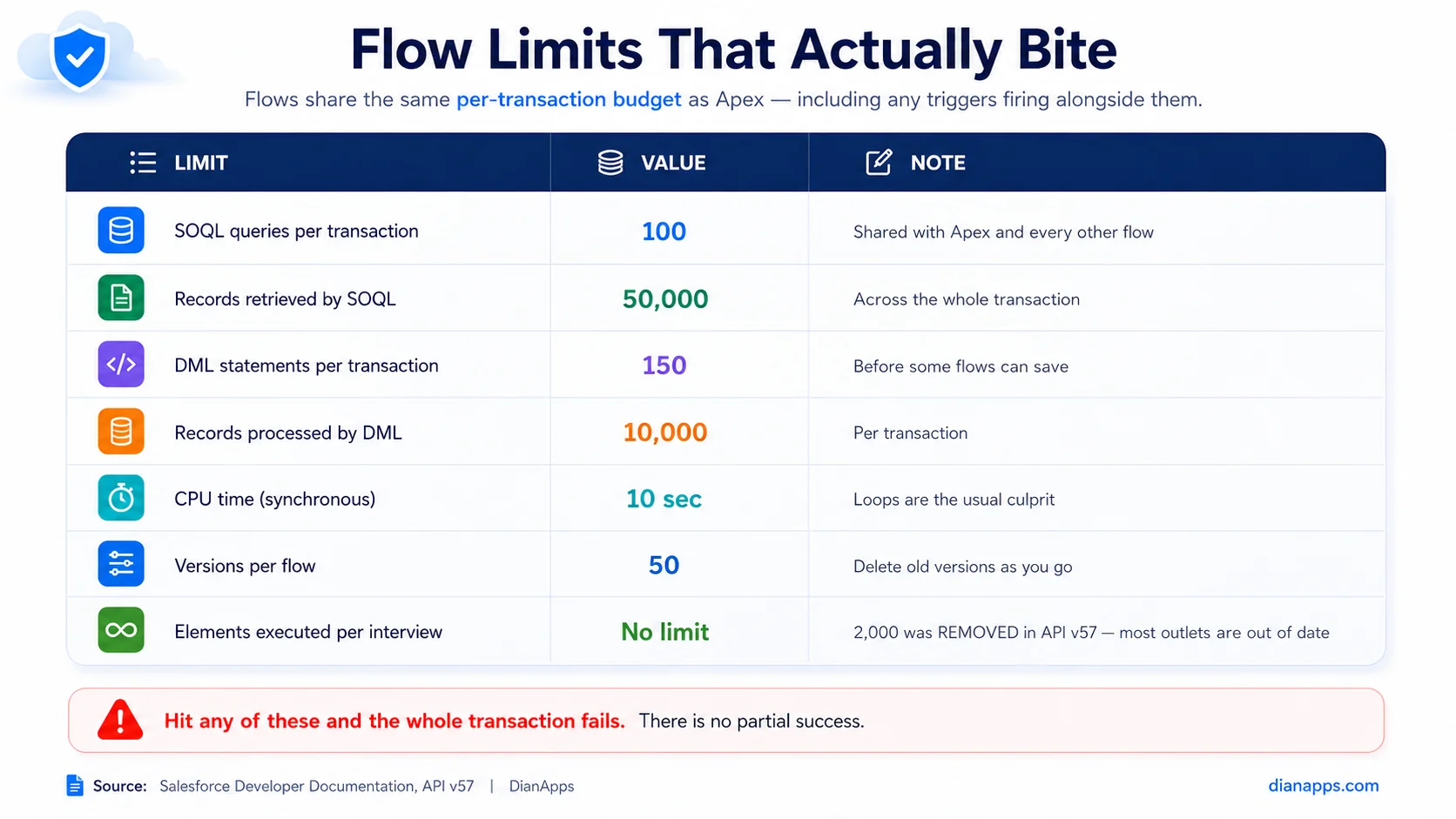
Two things most of you get wrong here.
First, the 2,000-element limit was removed in API version 57.0, but there are plenty of guides that still cite it. If your flow is on an older API version, you may still hit it – check the version before assuming.
Second, flows share the transaction budget with everything else. Your flow’s queries, the Apex trigger firing on the same object, and any other flow on that record all draw from the same 100 SOQL and 150 DML allowance. A flow that’s fine in isolation fails when it runs alongside a trigger.
Staying inside the limits:
- Never Put Get, Create, Update, or Delete Inside A Loop: This is the flow equivalent of SOQL in a loop and causes the same failures. Collect into a variable, act once outside the loop.
- Use Before-Save: Where you can – it consumes no DML at all
- Filter In The Get Element: Not with a Decision afterwards
- Split Large Flows Into Subflows: Rather than building one enormous canvas
- Move heavy work to schedule-triggered or asynchronous paths
Full reference: Salesforce governor limits · SOQL guide
Subflows and Keeping Flows Maintainable
A subflow is an autolaunched flow called from another flow. Two reasons to use them:
- Reuse: Logic that appears in three flows should exist once.
- Readability: A flow with sixty elements on one canvas is unmaintainable regardless of whether it works. Break it into named subflows, and the main flow becomes a readable summary of the process.
The practical threshold: If you can’t understand the flow from one screen without scrolling, split it.
The “One Flow Per Object” Debate
The old orthodoxy was one record-triggered flow per object per context, to keep execution order predictable. That guidance has genuinely shifted, and it’s worth knowing why.
- The Argument For One Flow: You control the order of operations explicitly. Everything on that object is in one place.
- The Argument For Several: A single flow handling every requirement for an object becomes an unmaintainable monolith, and different teams end up editing the same flow.
- What Changed: The Flow Trigger Explorer lets you see every record-triggered flow on an object in the order it runs – and reorder them. That removes the main objection to having several, because order is now visible and controllable rather than implicit.
- Where This Lands In Practice: Several focused flows per object, each with a clear single purpose and a name that says what it does, with execution order set deliberately in Flow Trigger Explorer. Not one monolith, and not fifteen overlapping flows nobody has audited.
Testing and Auditing Flows
The Flow debugger runs a flow against real or specified data and shows the path taken and every variable at each step. Use it before activating anything.
- Test with volume: A flow that works on one record can fail on two hundred. Debug with a bulk scenario, not a single happy path.
- Flow Tests: Let you save test configurations against a record-triggered flow and re-run them – closer to Apex unit testing than the debugger, and worth setting up for anything business-critical.
- Lightning Flow Scanner: Is a free static analysis tool that scans flows for hardcoded IDs, unsafe run contexts, DML inside loops, missing fault paths, and recursion risks. Available as a VS Code extension and an unmanaged package. Almost nobody uses it, and it will find problems in your org today.
Related: Salesforce DevOps and CI/CD · sandboxes and environment strategy
Migrating from Process Builder and Workflow Rules
If you still have them running, they’re working on borrowed time, as both are now retired.
The approach:
- Inventory What You Have: Setup → Process Builder and Workflow Rules, plus what each one actually does.
- Don’t Port One-To-One: Several Process Builder nodes often collapse into one well-designed flow. Rebuilding beats translating.
- Use The Migrate To Flow Tool: For straightforward cases – it handles simple criteria and actions, and struggles with anything complex.
- Rebuild The Complex Ones By Hand: Take the opportunity to add fault paths the original never had.
- Run Both In Parallel Briefly: Then deactivate the old one – never delete before you’ve verified.
- Watch For Duplicate Execution: While both are active.
One warning: deleted flows cannot be recovered. There’s no recycle bin. Deactivate first, delete much later.
Flow Best Practices
- One clear purpose per flow and a name that says what it is
- Entry conditions before logic – don’t let a flow run then decide it shouldn’t have
- Before-save for same-record updates
- Fault paths on every data element
- Null-check after every Get
- No DML or Get inside loops
- No hardcoded IDs – use custom labels, custom metadata, or a Get
- Subflows for anything reused or anything long
- Description fields filled in, on the flow and on individual elements
- Deactivate rather than delete
- Review quarterly and remove what nobody uses
Where to Go Next
For the decision about when code beats clicks, see Flow vs Apex.
For multi-user, multi-step processes with pauses and approvals, see Flow Orchestration.
For the limits every automation shares, see governor limits, and for the queries inside your Get elements, see the SOQL guide.
For what else you can build without code, see Salesforce low-code development.
For the wider picture, the complete Salesforce development guide is the hub.
When Automation Becomes the Problem
There’s a point where an org has enough overlapping flows that nobody can safely change anything. Records update twice. Nobody knows which automation set a field. Every release breaks something unrelated.
That’s not a Flow problem – it’s an automation architecture problem, and it doesn’t fix itself.
We’re a certified Salesforce Consulting Partner, and untangling automation sprawl is routine work for us: mapping what fires when, consolidating overlapping flows, adding the error handling that was never there, and putting governance in place so it doesn’t happen again.
Book a Salesforce development scoping call →
 0 comments











Leave a Comment
Your email address will not be published. Required fields are marked *