












 0 comments





Key Takeaways:
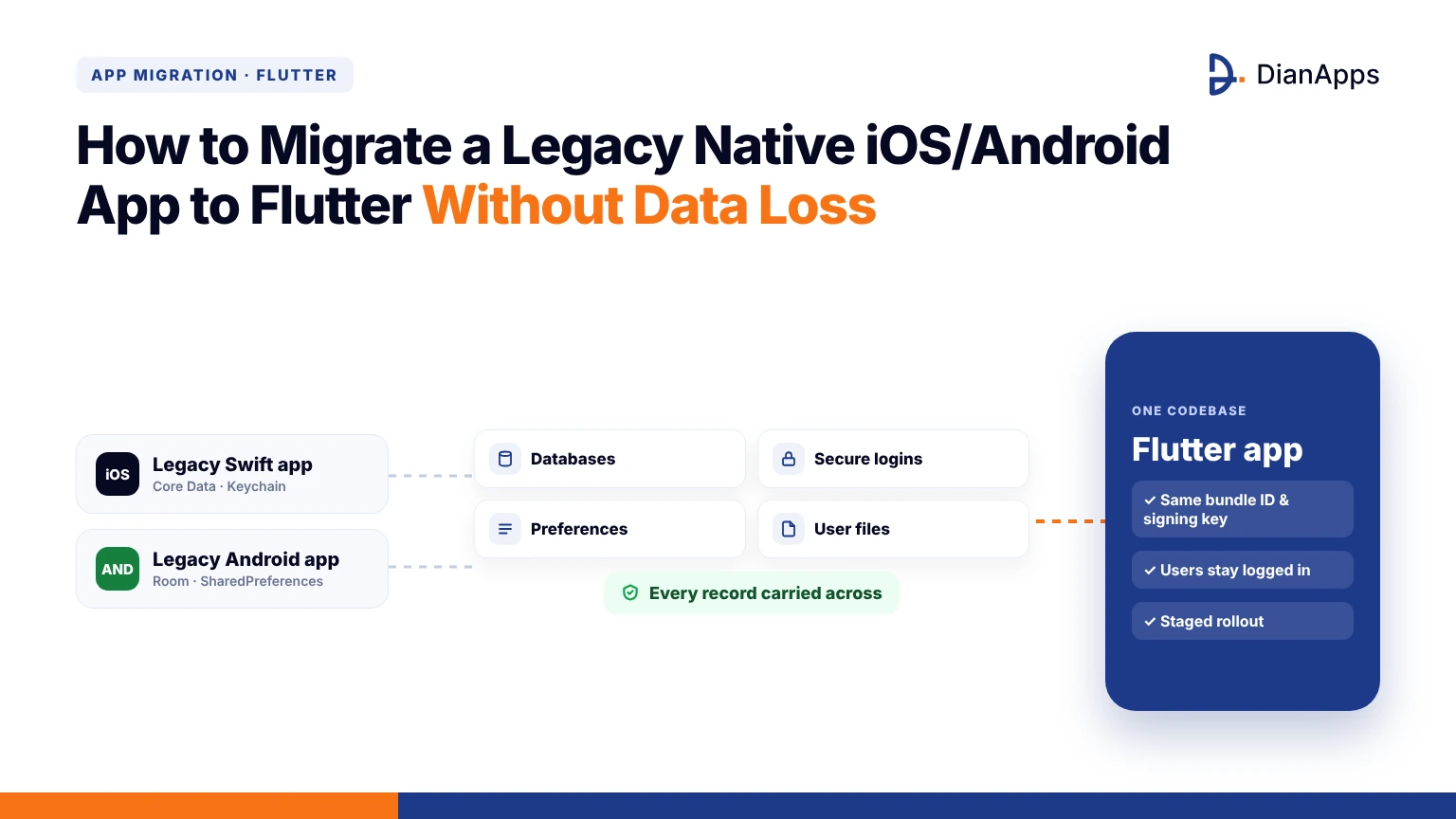
- Preserve bundle IDs, application IDs and signing keys to maintain existing app data and user sessions.
- Audit Core Data, Room, Keychain, SharedPreferences and file storage before migration.
- Use Flutter Add to App for gradual migration when retaining native modules and data layers is necessary.
- Build versioned, idempotent migration routines to prevent duplicate copies and recover from interrupted upgrades.
- Test real upgrade paths and use staged rollouts to catch data loss before wider release.
Quick Answer: Migrate native iOS and Android apps to Flutter by auditing existing storage, preserving app identity, and reusing databases and credentials. Implement versioned migration routines, test real upgrades, and retain legacy data for recovery.
Every mobile team is eventually inheriting an app that nobody wants to touch, with a Swift codebase from 2017 on one side and a Java codebase with its own bugs on the other, and the business is now asking for one team and one roadmap. Migrating a legacy native app to Flutter is solving that problem, but the part that keeps engineers awake isn’t the UI rewrite, it is the years of user data sitting in Core Data, Room, Keychain and SharedPreferences that must survive the upgrade untouched.
It comes down to auditing every data store, keeping the app identity intact, and writing a migration routine you can run a thousand times safely, so let’s break it down.
Why Data Loss Happens During a Native to Flutter Migration
Data loss during a Flutter migration is almost never caused by Flutter itself, and it is nearly always caused by the new build looking for data in a different place than the old build was writing it.
The operating system is treating your app as a sandbox tied to a bundle ID on iOS and an application Id plus signing key on Android, and anything that changes those is handing users a fresh, empty app. If you’re still planning the broader rebuild, our guide on how to build a mobile app covers the scoping side, and the technical causes we’re seeing most often are these:
- Changing the bundle identifier or applicationId, which is creating a brand new sandbox with none of the old files.
- Reading databases from a different directory than the native code was using, so the Flutter layer finds nothing.
- Dropping Keychain or Keystore access, which is logging every user out on the first launch after the update.
- Rewriting the database schema without a migration step, leaving existing rows unreadable by the new models.
Each of these is avoidable with a few deliberate decisions early in the project, and the reasons are not hard to see once you’ve mapped where every byte of data actually lives, so let’s take a look at that audit next.
Auditing Every Data Store in the Legacy App Before You Migrate
The first week of any serious migration should be spent reading the old code with a single question in mind, which is where does this app persist anything at all. Native apps are hiding data in more places than developers remember, including Core Data stores in Application Support, UserDefaults plists, Keychain items, cached images in the Caches directory, and on Android the same story is repeating with Room, SharedPreferences, EncryptedSharedPreferences and internal files.
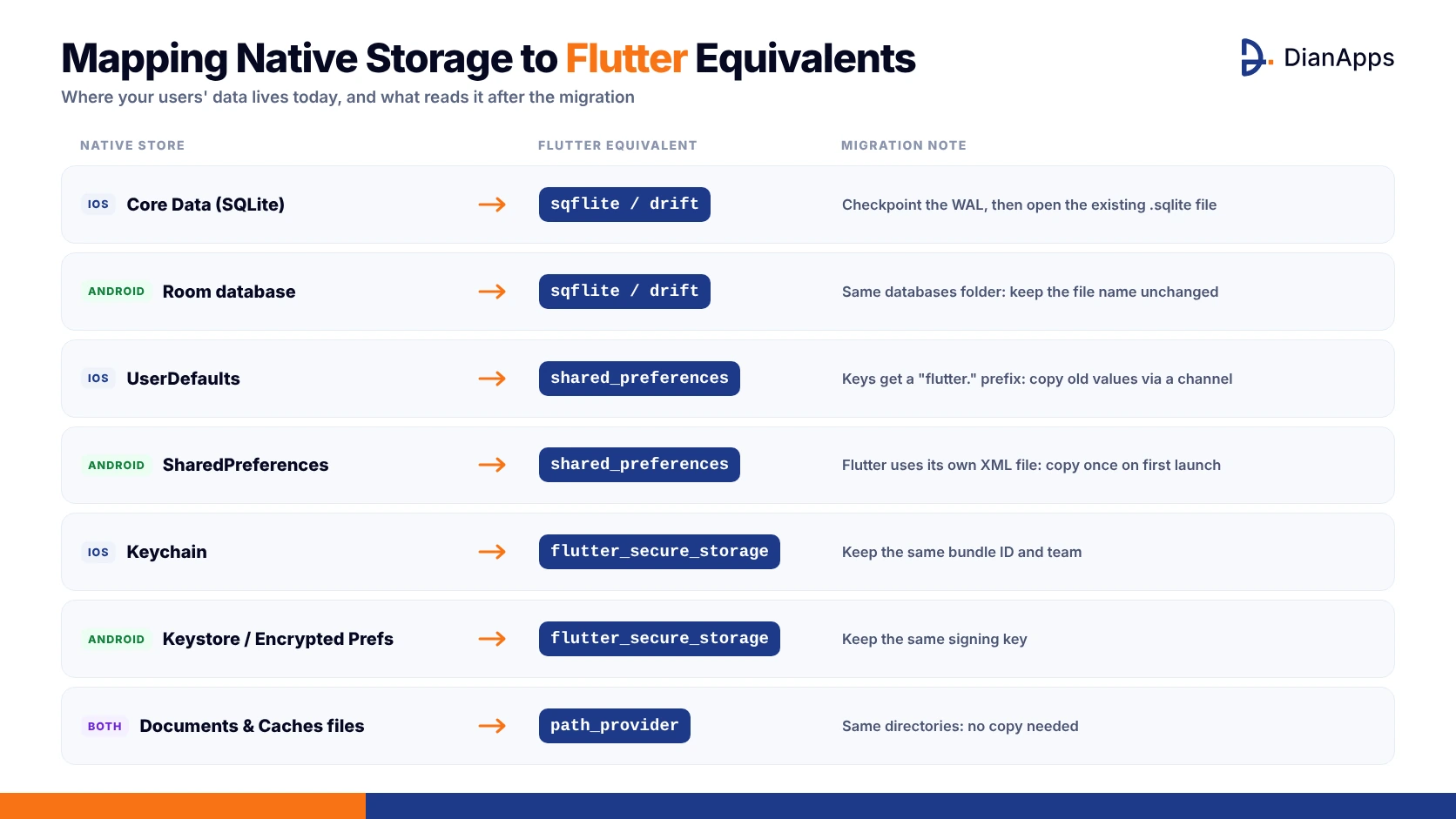
Write every one of these down with its exact path, its format and whether it is user generated or regenerable, because a cached thumbnail can be thrown away while a draft message cannot. This audit is also telling you which stores need a native bridge and which ones Flutter packages can read directly, and the mapping below is what we’re handing to clients at the end of that first week.
Choosing Between a Full Rewrite and Flutter Add to App
There are two honest ways to migrate a legacy native app to Flutter, and the right choice is depending on how much native code you’re willing to keep alive during the transition. A full rewrite is replacing the entire app in one release, which is cleaner but riskier, while the add to app approach documented in the official Flutter add to app guide is letting you embed a Flutter module inside the existing native shell and move one screen at a time.
Here is how we’re deciding between them:
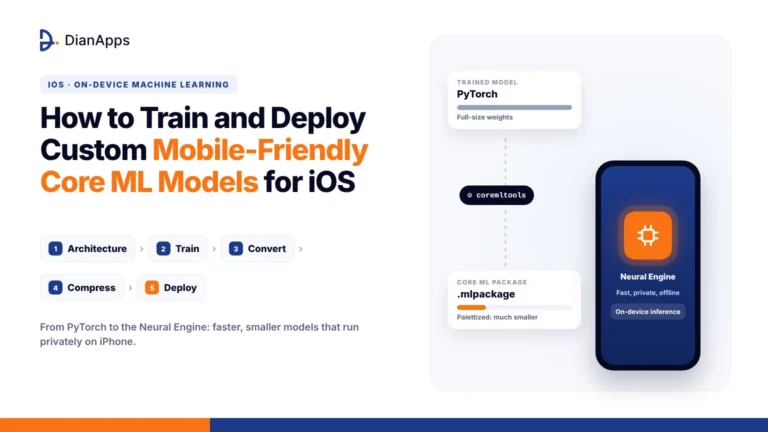
- Choose add to app when the legacy app has native modules you can’t rewrite quickly, such as the on device inference pipelines we covered in how to deploy on device AI models in iOS apps.
- Choose a full rewrite when the native code is small, the team is already fluent in Dart, and the release calendar can absorb one large launch.
- Choose add to app when you need the old data access layer to keep running untouched while Flutter screens read through it.
- Choose a full rewrite when the native storage is simple enough that sqflite and path_provider can read it directly.
In practice most legacy apps are landing on add to app for the first two releases and finishing with a full cutover once the data layer is proven.
Keeping the App Identity Intact So the Sandbox Survives the Update
This section is short because the rule is simple, but it is the single most important rule in the whole migration, so it deserves its own heading. On iOS the new Flutter build must ship with the exact same bundle identifier, the same Apple Developer team, and the same Keychain access groups in its entitlements, because the Keychain is scoping items by team and bundle and will refuse to return them otherwise.
Not Sure Which Migration Path Fits Your App?
Our Flutter engineers are auditing legacy codebases and recommending the safest route for your users.
On Android the applicationId in build.gradle must match the old package name even if your Dart package is named something else, and the APK or App Bundle must be signed with the same upload key or enrolled in Play App Signing with the original key, since Android is treating a different signature as a completely different app and blocking the update entirely. Entitlements that power platform features, including the ones we described in how to build AI features into iOS apps with Apple Intelligence, also need carrying across unchanged. Get this right and the files are already waiting for Flutter, so let’s read them.
Migrating Databases From Core Data and Room Into Flutter
Core Data is storing its data in an ordinary SQLite file, usually inside Library/Application Support, and Room is writing a plain SQLite file into the Android databases directory, which means Flutter’s sqflite package can open both without any export step.
The trap on iOS is that Core Data is using write ahead logging by default, so the main .sqlite file may be missing recent rows until the wal and shm sidecar files are checkpointed, and the cleanest fix is a tiny native method that opens the store once with journal mode set to delete before Flutter touches it. Opening the legacy file from Dart is looking like this:
|
1 2 3 4 5 6 7 8 |
import 'package:path_provider/path_provider.dart'; import 'package:sqflite/sqflite.dart'; Future<Database> openLegacyStore() async { final support = await getApplicationSupportDirectory(); final legacyPath = '${support.path}/Legacy.sqlite'; return openDatabase(legacyPath, version: 2, onUpgrade: migrateSchema); } |
Core Data is also prefixing its tables with Z and its columns with uppercase names, so your Dart models should map those names explicitly rather than assuming a clean schema, and on Android you’ll simply point sqflite at getDatabasesPath with the original Room file name. Databases are the biggest store but rarely the most fragile one, so preferences and secrets come next.
Moving Preferences, Keychain Secrets and Files Without Breaking Sessions
Preferences and secrets are where most migrations are quietly logging users out, because the Flutter packages are reading from slightly different places than the native APIs were writing. The shared_preferences package is prefixing every key with flutter. on both platforms and using its own XML file on Android, so your old values are invisible to it until you copy them, and these are the steps we’re following:
- Expose a MethodChannel method in the native shell that reads the old UserDefaults or SharedPreferences and returns them as one JSON map.
- Write those values into shared_preferences on first launch and record a migration flag so the copy never runs twice.
- Keep auth tokens in flutter_secure_storage, which is wrapping the same Keychain and Keystore the native app was already using.
- Leave files in Documents exactly where they are, since path_provider is resolving to the same directories on both platforms.
Treat a forced logout as data loss in your test plan, because from the user’s point of view a vanished session is feeling identical to a wiped account.
Writing an Idempotent One Time Migration Routine
Every migration step above should live inside a single routine that is safe to run repeatedly, since app crashes, force quits and low storage are all interrupting first launches in the real world. The pattern is versioning the migration itself, checking the stored version before doing any work, wrapping each step in its own try block, and only advancing the version once a step has verified its own output.
|
1 2 3 4 5 6 7 8 9 10 11 |
Future<void> runMigrations(SharedPreferences prefs) async { final current = prefs.getInt('migration_version') ?? 0; if (current < 1) { await copyLegacyPreferences(); await prefs.setInt('migration_version', 1); } if (current < 2) { await verifyLegacyDatabaseRowCount(); await prefs.setInt('migration_version', 2); } } |
Never delete the native data at the end of this routine, and instead leave it in place for at least two releases, because a user who reports a problem three weeks later is giving you a chance to recover their records only if the originals still exist. With the routine written, the remaining risk is the upgrade path itself, which only real devices can prove.
Testing the Upgrade Path on Real Devices Before Release
Unit tests are proving that your Dart code is correct, but they’re saying nothing about whether an upgrade from version 4.2 to the Flutter build keeps a user’s data, and that upgrade path is the only test that matters here.
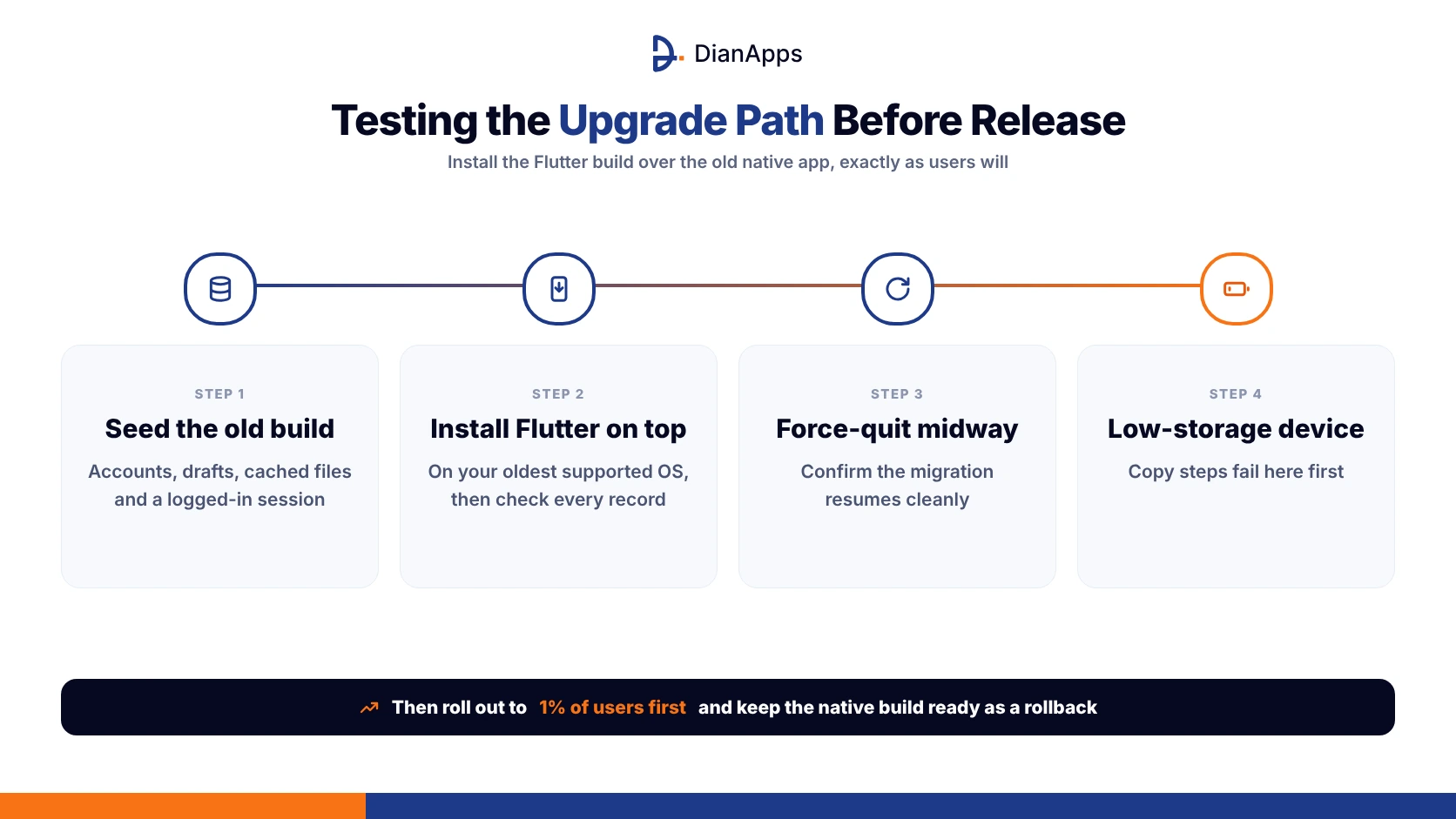
The reliable method is installing the last native release from TestFlight or a Play internal track, generating realistic data, and then installing the Flutter build over the top, which is exactly the sequence real users will experience:
- Build a seed script that creates accounts, offline drafts, cached files and a logged in session on the old build.
- Install the new build over it on the oldest OS version you support, then verify every record through the Flutter UI.
- Repeat the test after force quitting midway through the first launch, confirming the migration routine resumes cleanly.
- Run the same path on a device with almost no free storage, since copy steps are failing there first.
Regulated products such as those in our telemedicine app development cost breakdown are needing signed evidence of these tests, so record the results as you go rather than reconstructing them later.
Rolling Out the Flutter Build Without Breaking Existing Users
Even a perfectly tested migration is deserving a cautious rollout, because the variety of devices, OS versions and corrupted databases in a real install base is always wider than any test lab. Both stores are supporting staged releases, with Google Play letting you ship to a percentage of users and App Store Connect offering a seven day phased release, and we’re usually starting at one percent with crash and support monitoring watching for anything mentioning missing data.
The version code and build number must be strictly higher than the last native release or the stores will refuse to treat it as an update, and the previous native build should stay ready to resubmit as a rollback for at least two weeks.
This incremental approach is the same discipline we’re recommending in what is an MVP in app development, because proving the foundation on a small audience is always cheaper than apologising to the whole one. Before you ship, let’s run through the mistakes that still catch experienced teams.
Want a Second Pair of Eyes on Your Migration Plan?
We’re reviewing data layers, migration scripts and rollout plans before teams ship to production.
Common Mistakes That Cause Data Loss in Flutter Migrations
After guiding several of these projects, I’m seeing the same handful of errors reappear in code reviews, and every one of them is costing days when it reaches production instead of a test device. Watch for the following before you submit:
- Renaming the Android applicationId to match the new Dart package name, which is silently turning the update into a fresh install.
- Reading a Core Data store before checkpointing the write ahead log, so the newest rows appear to be missing.
- Running the preference copy on every launch without a version flag, overwriting new values with stale native ones.
- Deleting legacy files at the end of the first migration, leaving no way to recover when a bug surfaces later.
- Forgetting to re register push notification tokens, which is leaving migrated users without alerts until they reinstall.
None of these are difficult to fix, but each of them is invisible until a real user hits it, so bake the checks into your release checklist now.
Final Thoughts
Migrating a legacy native app to Flutter without data loss is less about Flutter expertise and more about respecting where the operating system has been keeping your users’ data for years, and carrying that respect through identity, storage paths, migration routines and rollout.
Teams that are auditing every store first, keeping bundle IDs and signing keys untouched, reading the original SQLite files in place, and testing the real upgrade path on old devices are shipping migrations that users never notice, which is exactly the result you want. Once that foundation is stable, the Flutter codebase is making it far easier to add the kind of features we compared in mobile AI agent vs AI chatbot, and if you’d rather not learn these lessons the hard way on a live app, we’ve got you covered.
 0 comments










Your email address will not be published. Required fields are marked *