















 0 comments





Here’s the thing most sandbox guides skip: A refresh doesn’t update your sandbox; it deletes it and provides a new one with a new Org ID.
That single detail is why teams come back from a refresh to find their Marketo sync dead, their middleware unauthenticated, and a support ticket queue between them and a working test environment. It’s documented in integration vendor forums with thousands of views, and almost no sandbox guides mention it.
This guide covers the types and limits properly, then the part that nobody writes about.
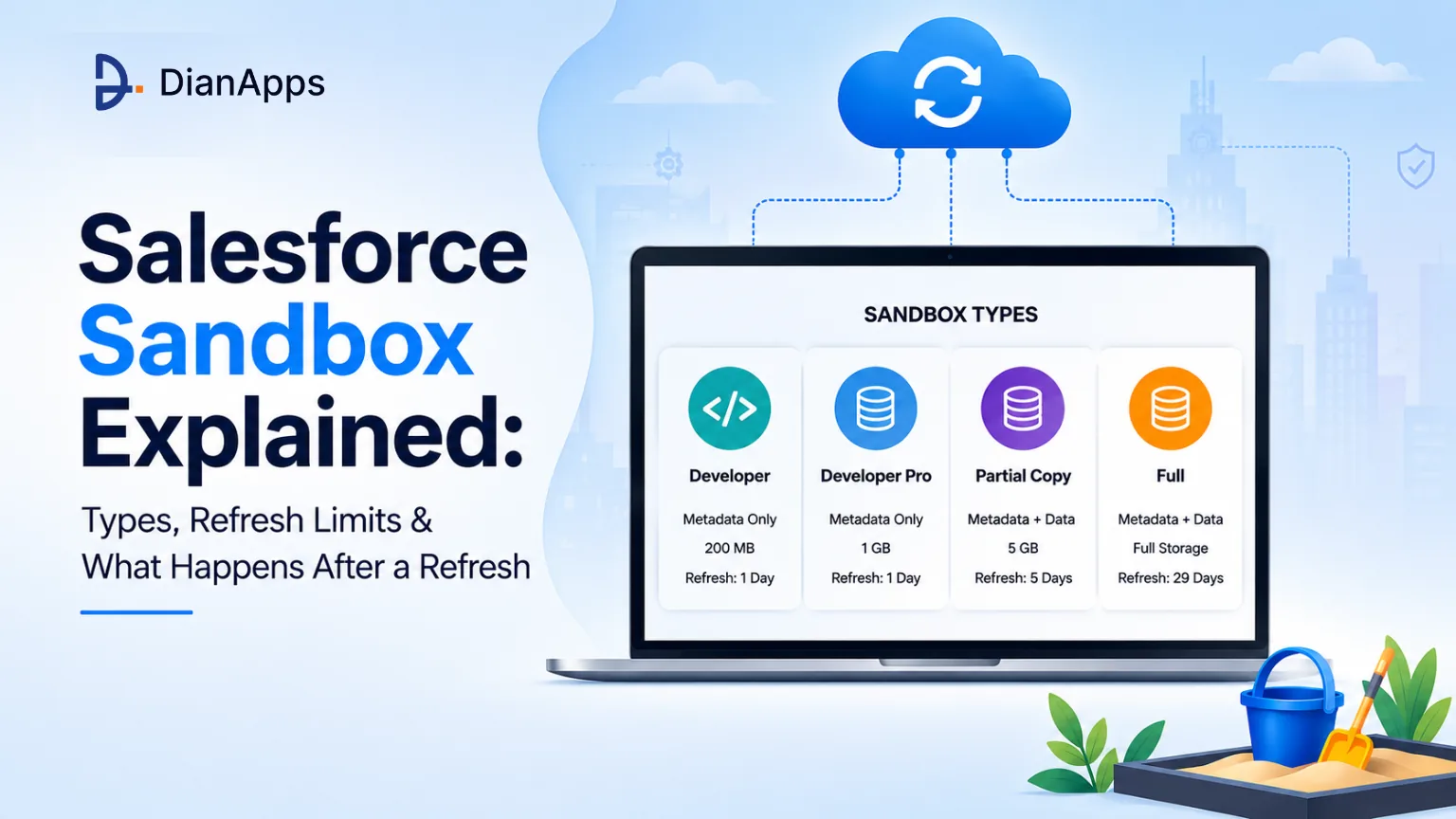
TL;DR: Four sandbox types: Developer (metadata only, 200MB, daily refresh), Developer Pro (1GB, daily), Partial Copy (5GB sample data, 5 days), Full (mirrors production, 29 days). Refreshes always pull from production, never from another sandbox. A refresh deletes undeployed work and issues a new Org ID, which breaks connected integrations. Run Data Mask before anyone logs into a Partial or Full copy.
The Four Salesforce Sandbox Types
The dividing line is simple: Developer and Developer Pro copy metadata only; Partial Copy and Full Copy metadata plus data. Everything else follows from that.
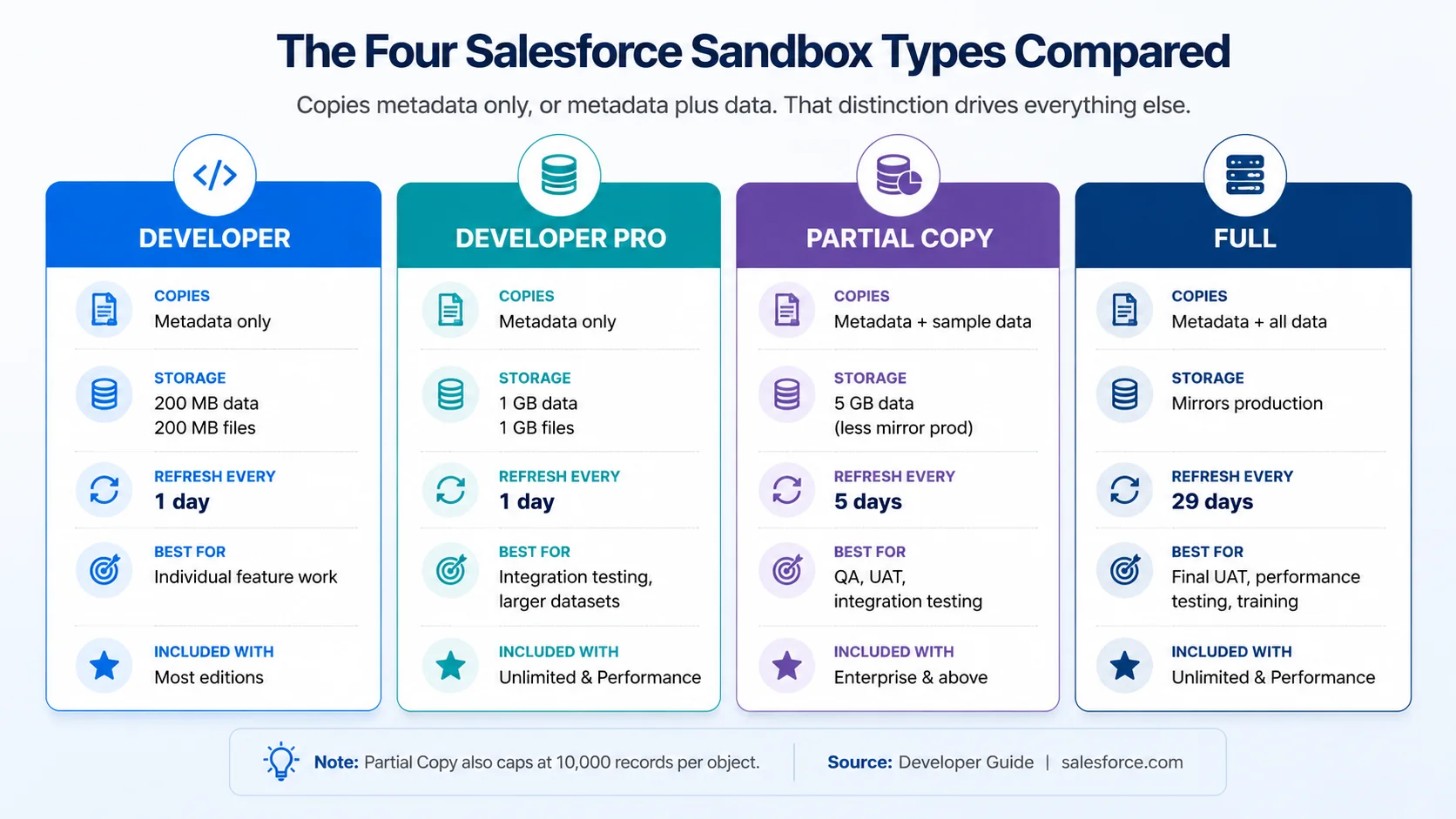
- Developer: Your default for feature work. 200MB of data and files, refreshable daily. Included with most editions, so you’ll usually have several.
- Developer Pro: The same thing with 1GB. Worth it when you need enough sample data to test properly but not a full copy.
- Partial Copy: The first type that brings real data across, using a sandbox template to define which objects and how much. Capped at 10,000 records per object. The workhorse for QA and UAT.
- Full: A replica of production, storage and all. The only sensible choice for performance testing and final UAT, and the slowest to refresh.
Refresh Limits and What They Mean in Practice
| Type | Refresh interval | Realistic refresh duration |
|---|---|---|
| Developer | 1 day | Minutes to an hour |
| Developer Pro | 1 day | Under an hour |
| Partial Copy | 5 days | Hours |
| Full | 29 days | Hours to more than a day |
The 29-day interval on Full sandboxes is the one that shapes release planning. Miss a refresh window, and your staging environment drifts a month behind production. Most teams that get burned by this discover it the week before a major release.
You cannot refresh one sandbox from another as a refresh always pulls from production. If you want a copy of a configured sandbox, that’s cloning – covered below.
Refresh duration depends on data volume and customisation. A small org completes in an hour; a large, heavily customised one can take more than a day. If your production org is on Hyperforce, refreshes are typically faster – check for the Hyperforce badge on the Sandbox list page in Setup.
How to Create or Refresh a Sandbox
- Setup → Sandboxes
Check your available licences first, and if you’re at your allotment, you’ll need to delete or convert one.
- New Sandbox (or Refresh next to an existing one).
- Choose the type
For Partial Copy, select or build a sandbox template defining which objects come across.
- Name It: This becomes part of the login URL and every username, so get it right – see the naming section below.
- Start the copy and wait.
- Activate It
This step catches people out: Copy Complete is not the same as ready. Go back to Setup → Sandboxes and click Activate.
- Work through the post-refresh checklist before letting anyone in.
Need Help With Your Salesforce Setup?
Whether you’re setting up sandbox environments, managing integrations, or improving your development workflow, our Salesforce development services can help you build and manage a more efficient Salesforce environment.
What a Sandbox Refresh Actually Breaks
This is the section most guides don’t usually write.
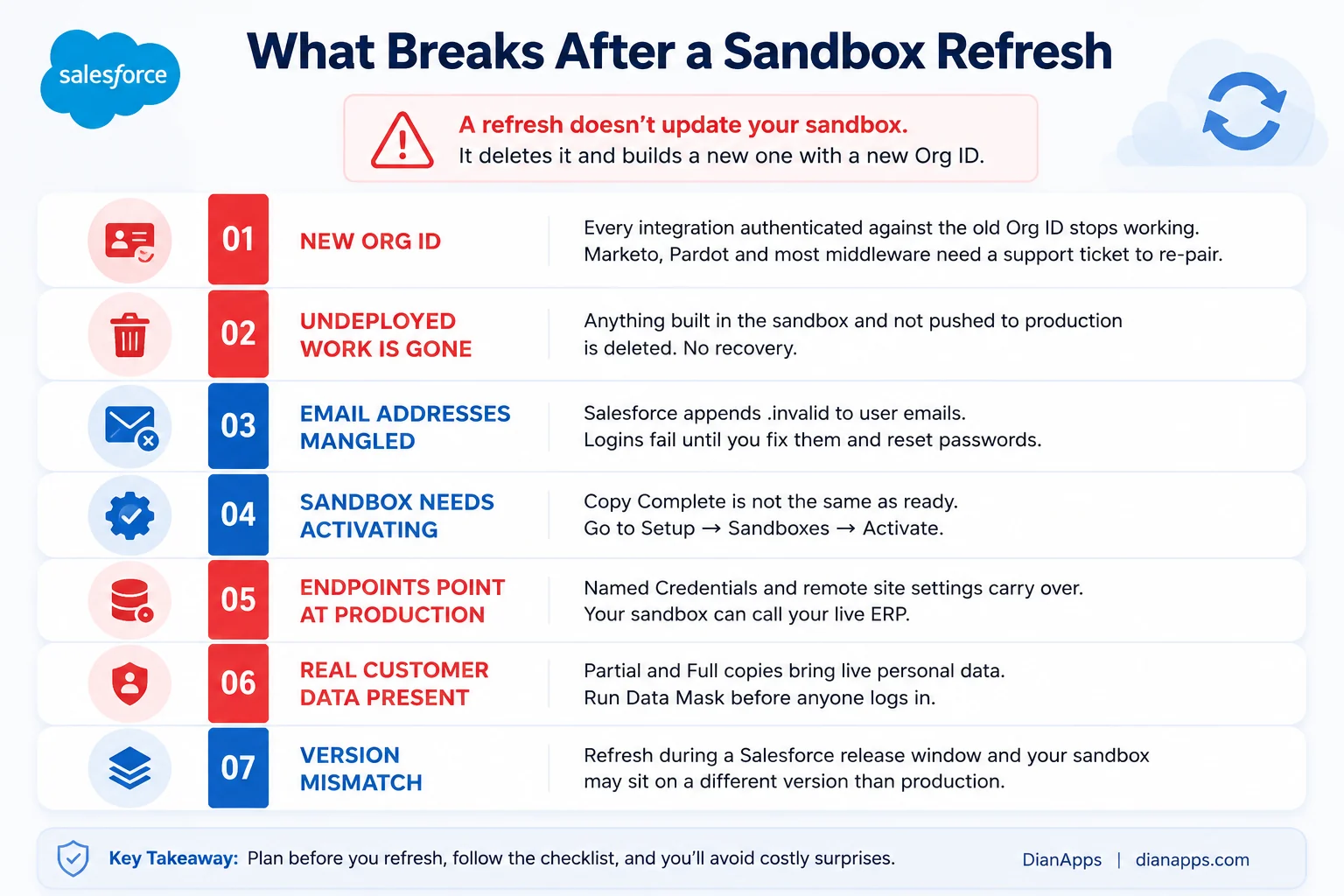
Seven things that break after a Salesforce sandbox refresh, including new Org ID, deleted undeployed work, mangled email addresses, activation requirement, production endpoints, real customer data, and version mismatch
- The New Org ID Is The Big One: Because a refresh provisions a fresh org rather than updating the existing one, the Org ID changes. Any integration authenticated against the old one stops working – and several major platforms deliberately lock a connection to a single Org ID, meaning you need a support ticket to re-pair them. Marketo is the most documented case; the same pattern affects Pardot connections, middleware, and anything using OAuth against a specific org.
- Plan for It: Disable the sync before you refresh, refresh, then coordinate re-pairing and regenerate security tokens for the integration user.
- Undeployed Work Is Gone: A refresh overwrites metadata from production. Anything built in that sandbox and not deployed is deleted, with no recovery. This is the single most common cause of a bad Monday.
- Emails Get Mangled: Salesforce appends .invalid to user email addresses so your sandbox doesn’t email real people. Useful, but it means logins fail until you fix them and reset passwords.
- Endpoints Still Point At Production: Named Credentials, remote site settings, and connected app configurations copy across unchanged. Your fresh sandbox can happily call your live ERP or payment gateway. Repoint them before anyone tests anything.
- Real Customer Data Is Present: Partial and Full copies bring live personal data into a lower-security environment. Mask it before granting access.
Release Windows Cause Version Drift: Refresh during a Salesforce release window, and your sandbox may end up on a different platform version than production, which makes any testing you do unreliable.
See managing Salesforce’s three annual releases.
The Post-Refresh Checklist
Work through this before anyone logs in:
- Sandbox activated in Setup
- User emails corrected and passwords reset
- Integration users recreated, security tokens regenerated
- Org ID change communicated to every integration owner
- Named Credentials and remote site settings repointed away from production
- Outbound email deliverability set to System email only
- Scheduled jobs and Flows reviewed – many restart automatically
- Data Mask run on any Partial or Full copy
- Permission sets and profiles checked for over-granted access
- Undeployed work from the previous sandbox confirmed as deployed or documented
Cloning: The Alternative to Refreshing
Sandbox Clone duplicates an existing sandbox rather than pulling from production; it skips the refresh wait and preserves the configuration you’ve already built.
Use it when:
- Your QA team needs several identical environments
- You want to reuse a configured setup without rebuilding it
- You need a snapshot before a risky change
The Trade-Off: a clone doesn’t sync with production, so it inherits any drift the source sandbox already had.
Data Mask and Sandbox Seeding
Data Mask anonymises sensitive data in a sandbox: names, emails, phone numbers, identifiers, after a refresh. It’s a managed package installed in production and runs against the sandbox.
If you’re in a regulated industry, this isn’t optional; a Full sandbox contains every customer record you hold, typically with looser access controls than production.
See Privacy Center and Data Mask and Salesforce compliance.
- Sandbox seeding is the opposite problem: A Developer sandbox has no data at all, so the options are a test data factory in Apex, Data Loader with a prepared CSV set, or a seeding tool. Building a reusable seed set is one of the highest-return things a team can do – it turns “wait for a Partial Copy refresh” into “run the script.”
Environment Strategy: What You Actually Need
More sandboxes isn’t better; each one needs refreshing, governing, and, past your allotment, paying for.
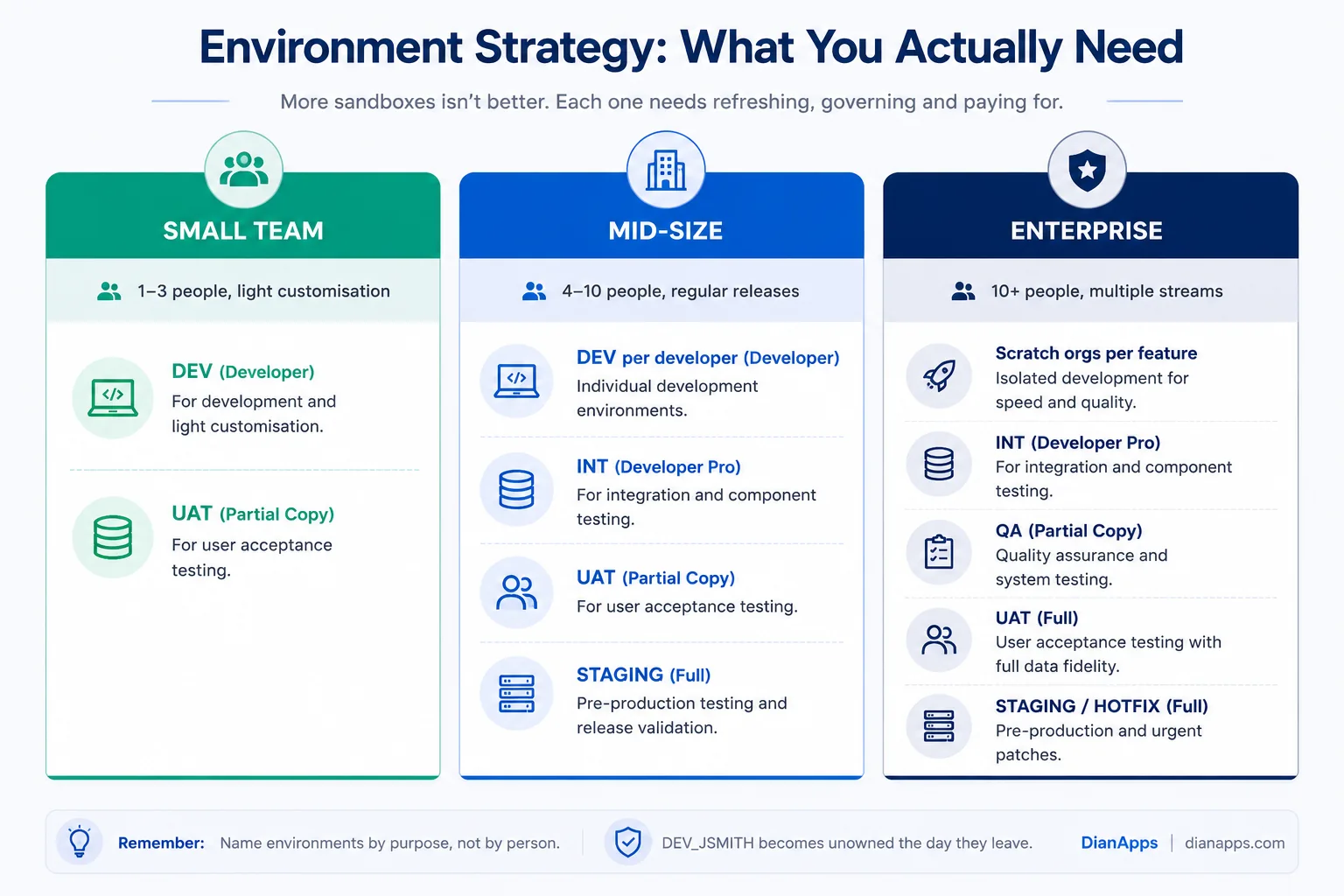
Environment strategy by team size showing small teams need two sandboxes, mid-size teams need four, and enterprises need scratch orgs plus four or five sandboxes
- The Principle: One environment per purpose, not one per person. A Developer sandbox each is fine – those are cheap and disposable, but a Full sandbox of each is not.
- Where Scratch Orgs Fit: Scratch orgs are disposable, source-tracked environments created from a definition file, spun up in minutes and thrown away. They suit source-driven development and per-feature isolation, and they reduce how many Developer sandboxes you need. They don’t replace Partial or Full copies, because they have no production data. Most mature teams run both.
See Salesforce DevOps and CI/CD.
Naming and Governance
Sandbox names become part of every username in that environment (user@company.com.uat) and can’t be changed without a refresh, so make sure to get it right the first time.
- Name By Purpose, Not By Person: DEV_JSMITH becomes an unowned mystery the day they leave. UAT, INT, STAGING, TRAINING stay meaningful.
- Keep Names Short: They’re appended to every username.
Governance that prevents sprawl:
- A named owner per environment, documented
- A published refresh calendar, with Full sandbox windows planned around releases
- A rule that undeployed work is deployed or documented before any refresh
- Quarterly review – delete sandboxes nobody has logged into
Old sandboxes consume licences you may need and hold stale customer data nobody is auditing.
Refreshes breaking things every time?
That’s usually an environment strategy problem, not a refresh problem. We’ll review how your sandboxes are structured and what your pipeline actually needs.
What Do Sandboxes Cost?
Sandboxes are included with your edition up to an allotment, and purchasable beyond it.
| Edition | Typically includes |
|---|---|
| Professional | Developer sandboxes only |
| Enterprise | Developer, Developer Pro and Partial Copy |
| Unlimited / Performance | All four types, including Full |
Additional sandboxes, particularly full, are priced as a percentage of your net annual licence spend, which means they scale with your org rather than being a flat fee. For a large org, an extra Full sandbox is a material line item.
- Before Buying Another One, Check Utilisation: In the orgs we review at DianApps, unused or duplicated sandboxes are common – teams provision one for a project and never delete it. A cleanup often frees exactly the licence someone was about to purchase.
More on managing platform costs: Salesforce customization cost
Final Thoughts
Salesforce sandbox management is not just about choosing the right sandbox type or waiting for the next refresh window. A well-planned environment strategy protects your work, keeps integrations connected, prevents production data from leaking into testing, and gives your development and QA teams a reliable place to work. If refreshes regularly turn into broken integrations and last-minute firefighting, it may be time to rethink how your Salesforce environments are structured and governed.
Where to Go Next
For the pipeline that moves work between these environments, see Salesforce DevOps: CI/CD and release management.
For handling the three annual platform releases your sandboxes have to stay aligned with, see managing Salesforce releases.
For the testing standards that make a sandbox useful, see the Apex guide – particularly the section on test data factories.
For the broader picture, the complete Salesforce development guide is the hub.
When Environment Management Becomes the Bottleneck
If every refresh means a day of firefighting – broken integrations, lost work, endpoints pointing somewhere they shouldn’t – the problem usually isn’t the refresh. It’s that the environment strategy grew by accident.
We’re a certified Salesforce Consulting Partner, and untangling sandbox sprawl is routine work for our team: mapping what each environment is for, building a refresh calendar that survives release windows, setting up Data Mask, and putting a real deployment pipeline underneath it. Our Salesforce development services can also help you optimize your broader Salesforce environment, integrations, and development workflows as your requirements grow.
 0 comments










Leave a Comment
Your email address will not be published. Required fields are marked *